Tampilkan postingan dengan label schedule. Tampilkan semua postingan

Finding Something that is Hidden by Element using a Schedule

Posted by Unknown Senin, 20 Januari 2014 0 komentar
Using Schedules, you can usually use Highlight in Model to find an element (or group of elements) from a schedule row.

However, this does not work if the element is hidden in the only view that it is instantiated in - for example, a single Generic Annotation entry in a Note Block (Schedule).  Revit will not be able to find the element.

One workaround - interestingly, selecting a Schedule row actually selects the object/s in Revit, but at least in my configuration (Properties Palette on second monitor), it does not show the Properties in the Palette for that object while the Schedule view is active.  However, you can:

  1. Select the schedule row
  2. Switch to another view (for example, a 3D view)
  3. The Properties Palette has now updated to show the properties for the Element!
  4. You can trigger normal commands - such as IDs of Selection or Save Selection

Another workaround:

  1. Install RevitLookup
  2. Select the row in the Schedule
  3. Revitlookup - Snoop Current Selection... (this will give you Element ID and other info)

Baca Selengkapnya ....

Creating a Generic Schedule for Custom Data in Revit 2014

Posted by Unknown Kamis, 17 Oktober 2013 0 komentar
In previous versions of Revit, Key Schedules were often used for generic data, general notes and the like.  However, Key Schedules have limitations - one of which is that you cannot insert an image in a Data Row.

Are you ready to see a more powerful version of generic, custom schedules in Revit?  Do this:

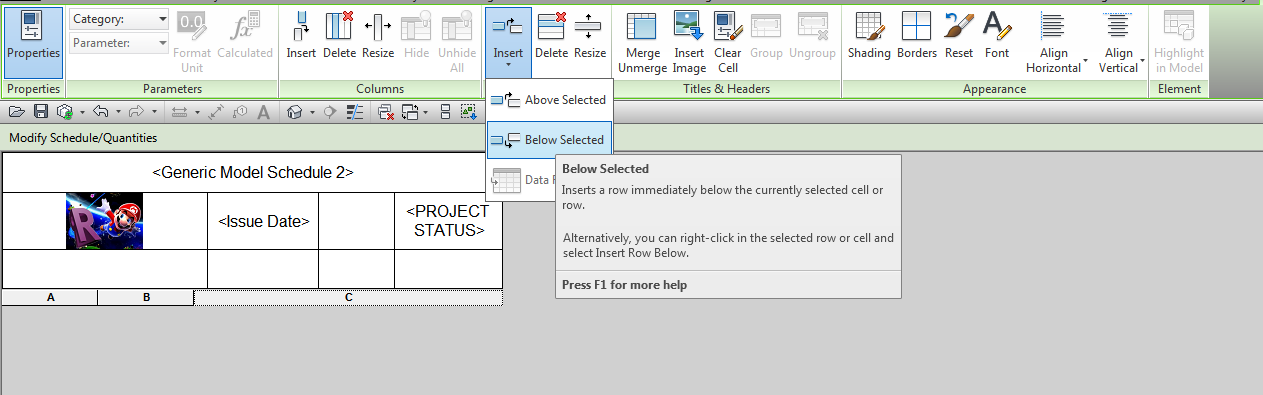
  1. Make a Schedule that finds no elements (you can use a Filter), and turn off "Show Headers" but leave "Show Title" checked
  2. Click in the Title
  3. Insert Row Below Selected, as per image:


You can also insert columns (these are not "aligned" to actual Schedule parameters).

And guess what?  You can insert images into these cells, AND you can insert Fields / Parameters by using the drop down list:

Interestingly, this is a somewhat un-Revit workflow - we have a sandbox here for creating a custom Schedule, perhaps for Title Sheets (including Consultant Logos).  But you cannot really enter or leverage new data here - it is reading data from the Project or View (Schedule) parameters.  However, you can enter "dumb" text in any of these fields.

Idea via this comment:
David Conant (yep, that guy)
Principal User Experience Designer

In 2014, create a schedule that finds no elements (use an unused category or filter out the elements). Go to the header and add rows and columns. Voila, a generic table into which you can add text, project parameters, view parameters, or images. You can modify cell shading, borders, font properties etc. The table will appear in the project browser schedule section.
link: Revit Users | LinkedIn

Full thread:
I know Revit schedules are very versatile and can be used many other ways than simply scheduling items in a model. What are some of the more creative ways you have found to use Revit schedules? | LinkedIn

Baca Selengkapnya ....

Schedule with Date Checking Mechanism against a global constant

Posted by Unknown Rabu, 16 Oktober 2013 0 komentar
You can do a logical test between a Project Parameter (in essence, a global constant for this Revit file) and an element parameter in most schedules.  If we leverage this for Rooms, we can check if the current Room Data has been checked against the most recent set of briefing documents from the Client.

To reveal Project Information as a possible parameter in a Room Schedule, just tick the "Include elements in linked files" box.


Both the Project Parameter and the SP parameter applied to the Room in the image above are Number type, meaning we can do the "greater than" test.

You can colour a given column field using Conditional Formatting, but did you know you can base the conditional formatting test on any of the fields in the Schedule (not just the target field for the formatting?)

Baca Selengkapnya ....

Using Keyboard Shortcuts in a Schedule View

Posted by Unknown Selasa, 15 Oktober 2013 0 komentar
Revit Keyboard Shortcuts don't work too well in Schedules, because Revit thinks you are trying to input data.

However, you can use the alternative key entry method - basically, it starts by pressing Alt, then following the onscreen text options that show up.

In some cases, this will be all you need.  But I wanted to make a quick way to Insert Data Row in a Room Schedule, and unfortunately it is buried under a drop down list on the contextual ribbon.

Here is part of the solution - add the Insert dropdown to the Quick Access Toolbar.  Now, when you press Alt, Revit will assign a shortcut to that position.  In my case, to trigger the insert data row command, I had to press this key sequence:
Alt
0
2
downarrow
downarrow
downarrow
Enter

So, still a pain.  But what if we could assign this as a macro to some smart shortcut system.  That's where the new Radial Menus on the SpacePilot Pro come in.  I created the above key sequence and added it to a Radial Menu.  Now I just press a button on my 3D mouse, select the Data Row shortcut that I created, and there it is...


See the top right banner on this page for an affordable way to enter the 3D mouse world...

Baca Selengkapnya ....

Reset Column Header name to default (ie. actual field name) in Revit 2014

Posted by Unknown Senin, 07 Oktober 2013 0 komentar
Swap it for another parameter and then back again...

This is easy on 2014 - after selecting the column or column header, you have an option in the ribbon to swap for another parameter.  When you swap it back again to the original, the name will match the Field / Parameter name, until you override it :-)

Baca Selengkapnya ....

Wall Opening Area Add-in (by Autodesk Labs)

Posted by Unknown Senin, 09 September 2013 0 komentar
What does it do?
Gives you more granular control over the calculation of wall and opening area

The results you get are divided according to an area value you can set. All the openings below that Maximum value are stored as Opening Area Smaller Max, and the total openings area are added to the Opening Area Parameter. Now, you can schedule this parameters and get the Gross area of the wall by playing with calculated parameters.
Heads-up and more info from here


Where can you get it?
From here

Baca Selengkapnya ....

Coordinate Scheduling add-in, a free and easy way to schedule Levels in Revit

Posted by Unknown Selasa, 30 Juli 2013 0 komentar
The coordinate scheduling tool, developed by Excitech for the Revit Platform will allow accurate and simple scheduling of X,Y and Z coordinates from Revit model elements. This is suitable for a whole range of applications but particularly the easy production of Piling schedules. 

It is part of the free Excitech Revit Toolkit.  It has also been around for a long time, as Revit add-ins go.  The other key function of this tookit is the Element Renumber tool.

Download by clicking on appropriate version link at the bottom of this page.  You will need to register / login.


Other info:
http://www.excitech.co.uk/products/syndicated_content/revit-toolkit.asp


Heads-up:
Revit @ Waterman: Schedule those Levels - A Method (with a little help from our friends)

Baca Selengkapnya ....

The difference between Parameters and Groups from 2013 to 2014

Posted by Unknown Minggu, 12 Mei 2013 0 komentar
Good post from Dave Light - he describes how you can use a Generic Model family to schedule group instances in Revit 2013, or use the parameter variance ability in Revit 2014 to drive data between Group instances and Schedules.  Cool huh?

From David Light's blog


Read the whole post:
Revit: Scheduling Apartments

Baca Selengkapnya ....

Including Project Parameters or Area Schemes from Linked Models in a Schedule

Posted by Unknown Sabtu, 27 April 2013 0 komentar
It may not be immediately obvious how you can quickly transfer Project Parameters or Area Schemes between linked models (to allow scheduling of linked RVT data in a host project).

Turns out the answer is pretty simple - just use Ctrl+C (Copy to Clipboard) to copy the required Schedules from one RVT to another.

The full process is described at:
Including Project Parameters or Area Schemes from Linked Models in a Schedule - WikiHelp

Baca Selengkapnya ....

Get a list of the names of all Reference Planes in a Revit Model

Posted by Unknown Selasa, 26 Februari 2013 0 komentar
WhiteFeet Tools for Revit is a powerful set of add-ins that can make the impossible, possible.  I have posted about them before.  In this brief post, we look at how you can effectively Schedule the Reference Planes you have in a model.

On the Add-ins Ribbon, choose Utility Tools - Schedule Tools:


Pick Write Category to Excel, then select the Reference Plane category, All Elements in Model:


After you press Write Data, you will get something like this:

You can then sort the Data to find the unnamed versions, and then use the Element ID to select and name those Reference Planes, if you so desire.  In our office, an unnamed Reference Plane is fair game for deletion...

Also, some of you may have picked up that you can use this same process to export data from ANY CATEGORY in Revit - including those that you cannot schedule!

Find out how to obtain the Whitefeet software here:
Tools

Baca Selengkapnya ....
Trik SEO Terbaru support Online Shop Baju Wanita - Original design by Bamz | Copyright of android tv.